 My favorite tool for downloading YouTube clips on Mac is the DownloadHelper extension for Firefox. It’s convenient, quick and even converts videos into the format of your choice while it downloads. For a while however I’ve been plagued with a “Conversion requires external application” error message when downloading certain clips.
The exact error read: “Conversion requires an external application that appears to be missing on your system. Configure conversion? > Cancel > OK.” When I selected OK, it opened the Preferences for DownloadHelper highlighting in red the location path for the selected converter option which is either FFMpeg or MEncoder.
I eventually found the start of the solution was to install the ffmpegX video/audio encoder for Mac. ffmpegX is basically a Mac OS X graphic user interface designed to operate more than 20 video and audio processing tools including ffmpeg which is a very fast video and audio encoder.
For the purposes of correcting the DownloadHelper error, you don’t actually need to use the ffmpegX interface. You do however need it to use it to install the mpeg2enc binary for ffmpegX. Once you’ve installed ffmpegX, you’ll be immediately taken to the main interface where you’ll be prompted to load 3 binaries. You only need to load one binary to fix DownloadHelper – the mpeg2enc binary – which can be found here.
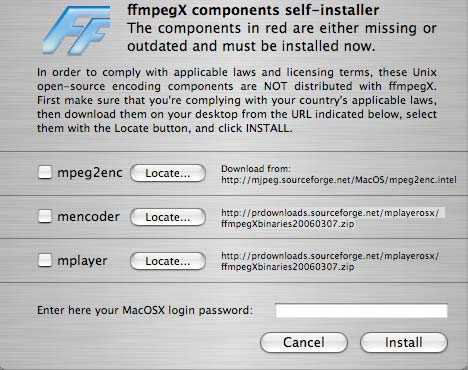
You don’t have to worry about the mencoder or mplayer binaries but you do need to check the box next to mpeg2enc and locate the binaries that you’ve downloaded onto your hard drive. The resulting installation places the binaries in your Mac’s application support library. The final step is to re-open your DownloadHelper preferences (in Firefox’s Tools menu) and enter the path where the binaries are located. For most people, it will be “/Library/Application Support/ffmpegX”:
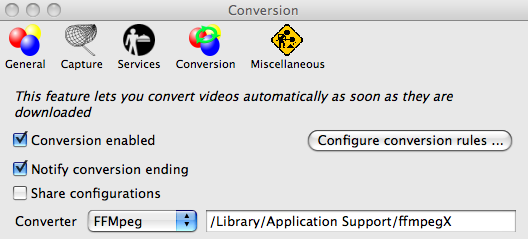
When the DownloadHelper logo animates next to the URL bar while you are using YouTube, you should now be able to download videos again with it. However, it hasn’t worked perfectly for me. For some reason, videos are being downloaded to a temporary file on my Mac rather than the directory I’ve configured downloaded files to be saved in DownloadHelper. In addition, the files are not being converted to QuickTime format they were previously. However, I can sort-out all of this by manually moving the files and converting them myself later. The important thing is that this work-around allows you to download YouTube clips again using DownloadHelper.